Relocating My Blog to Github Pages
Relocating My Blog to GitHub Pages#
I am a man who is easily distracted (clearly, it’s been six months since I last posted here). I like to experiment with things, and creating this blog was largely an experiment with Hugo and Docker. Here are a couple of notes about me:
- I dislike rich text editors
- I am not fond of HTML or CSS
- I like writing in Markdown; I think it’s efficient
- I like Git
- I like things that are free
If I was going to start a blog and update it with any regularity, I needed it to be dead simple. I wanted to write in Markdown, commit that Markdown to a repository, and have it magically turned into a webpage—which is easier said than done, it seems. This is how I came across Hugo.
Hugo#
Hugo is a framework written in Go that takes Markdown files and turns them into a static site. There’s a litany of themes you can add as Hugo Modules (built on Go modules) by importing them in your config.
The Hugo config file defines site-wide settings. Posts use front matter. For example (YAML shown here—Hugo also supports TOML and JSON):
---
title: "Relocating My Blog to GitHub Pages"
date: 2025-08-27
draft: false
tags:
  - hugo
  - blog
  - github
  - pages
showFullContent: false
description: "A simple Hugo + GitHub Pages setup: build on tags, deploy to a pages branch, point a custom domain."
---
Then you simply run hugo and it outputs the site to the public/ directory by default (you can change this with publishDir).
Hugo has plenty of features that make it suitable for more sophisticated projects, but those were outside the scope of my needs.
Hosting the Static Site#
In the initial iteration of this project, I ran Hugo inside a Docker container and used an Nginx container to serve the public/ folder. Here’s the compose file I was using:
name: blog

services:
  hugo:
    image: hugomods/hugo:exts-non-root
    command: hugo --cleanDestinationDir --destination /usr/share/nginx/html --baseURL https://blog.barbetta.me
    volumes:
      - .:/src
      - ./public:/usr/share/nginx/html
    restart: unless-stopped
    networks:
      proxy_network:
        ipv4_address: 192.168.100.3  # Static IP for Hugo

  nginx:
    image: nginx:latest
    depends_on:
      - hugo
    networks:
      proxy_network:
        ipv4_address: 192.168.100.4  # Static IP for Blog Nginx
    volumes:
      - ./public:/usr/share/nginx/html:ro
      - ./nginx.conf:/etc/nginx/conf.d/default.conf:ro
    ports:
      - 1313:80
    restart: unless-stopped

networks:
  proxy_network:
    external: true  # Use the pre-defined network from NPM
With this approach, I ran the container on a local VPS. I used a Gitea instance to push the Markdown files, although the process was still fairly manual:
- Write Markdown files on my laptop
- Push to Gitea
- SSH into VPS
- Pull from Gitea
- Restart the container
Mostly, this was fine, but I saw room for improvement. It could be more automated, and I didn’t want to rely on a VPS. An S3 bucket could just as easily serve a static site, or…
GitHub Actions & Pages#
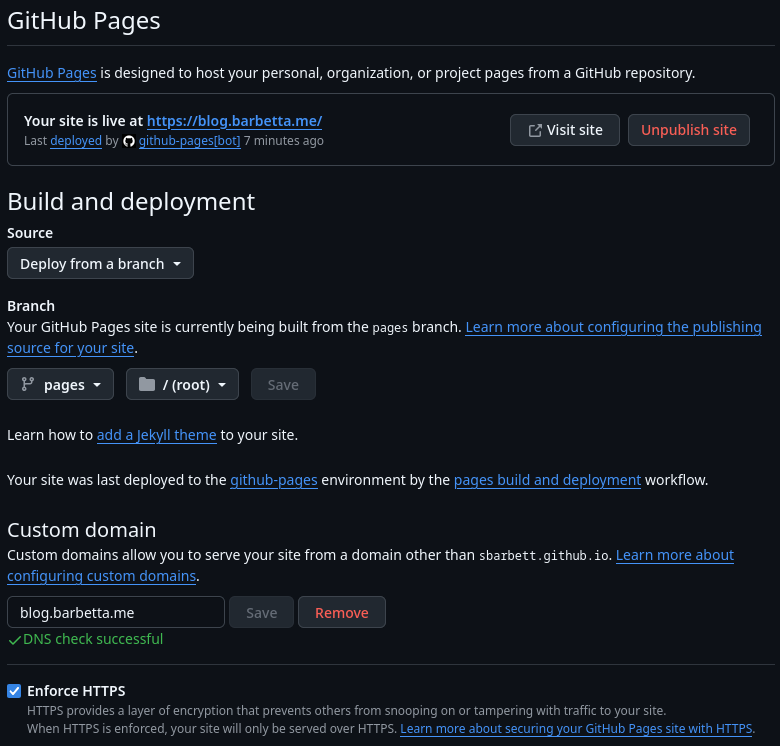
Lately I’ve been exploring all the potential of GitHub Pages. This is a really simple (and free) way to put up a basic static page (free for public repos; private repos require a paid plan). I wrote a simple workflow that, on release, runs Hugo on the repo, then commits the build to a separate branch called pages. GitHub Pages can be served from either the root or /docs folder of any branch—including a dedicated one.
The other workflow is one I’ve used on other projects—it runs whenever a tag is pushed to the repository. So publishing a new post looks something like this:
- Add the new Markdown file to
content/posts/ - Update the
CHANGELOG.mdwith a summary - Push the content and a new tag to the repository
This will kick off the release process: a release is generated from the CHANGELOG, the CHANGELOG is updated, and then the release workflow is initiated.
Custom Domains#
Setting up a custom domain is straightforward —
Go to your profile settings → Pages and add your domain (this step is for verification). GitHub will prompt you to add a TXT record for DCV. Keep that TXT record in DNS so the domain stays verified.
In your repository settings → Pages, set the custom domain for the specific site. If you’re publishing from a branch, GitHub will create (or expect) a
CNAMEfile at the root of the publishing source.Add your DNS records:
- For a subdomain (e.g.,
blog.example.com), create a CNAME pointing to<user>.github.io(not the repo name). - For an apex (e.g.,
example.com), use A/AAAA (or ALIAS/ANAME) to GitHub Pages—not a CNAME (those aren’t permitted at the root, which we all know of course).
- For a subdomain (e.g.,
In my case, I created a CNAME from
blog.barbetta.metosbarbett.github.io.- If you’re using Cloudflare, TURN OFF THE PROXY (DNS-only) while GitHub provisions HTTPS. With the proxy on, GitHub can’t issue its certificate; you can re-enable the proxy after provisioning if you want (although, I can’t say whether this will interfere with certificate renewal… I left it off).
My
hugo.ymlworkflow also creates aCNAMEfile in thepagesbranch—this signals the custom domain when publishing from a branch. Note: if you use the Pages Actions deploy (artifact +actions/deploy-pages), aCNAMEfile is ignored and not required.
Summary#
GitHub Actions can be fickle at times, but all in all, getting this up and running wasn’t too difficult. If you’re interested in setting up a blog this way and have questions, feel free to reach out through my contact form. Something I may explore next is building a custom Hugo theme.